Nightingale AI overview
Nightingale AI is the built-in assistant: it answers questions about alerts, metrics and configuration, drafts changes, and sees only what the asking user can see.
Last reviewed
Where this page ends: you know which questions the built-in assistant can actually answer, where it can be reached from, and why it can never see more than the person asking.
Before you start
One LLM config that is both enabled and Default — see
Configure an LLM provider. Without it every question comes back as a card
reading No LLM configured in the current environment. Nothing else is needed; the assistant is
part of the n9e process.
The workspace
Nightingale AI is a top-level item in the sidebar, just under Home. Its own left rail holds New chat, and — for accounts that hold the matching permission points — LLM configs and Skill management. Below them, Conversations lists your own history with a search box.
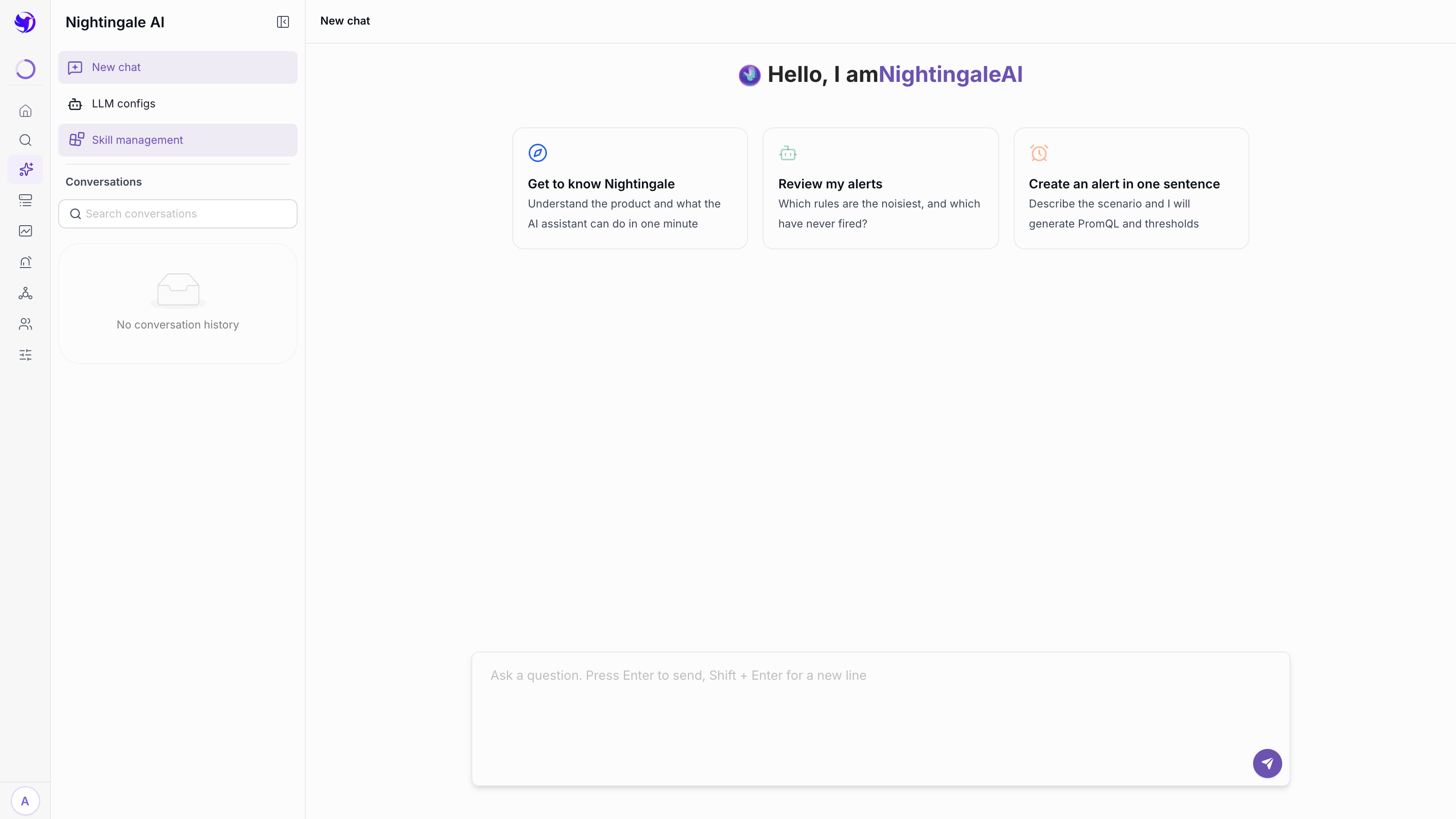
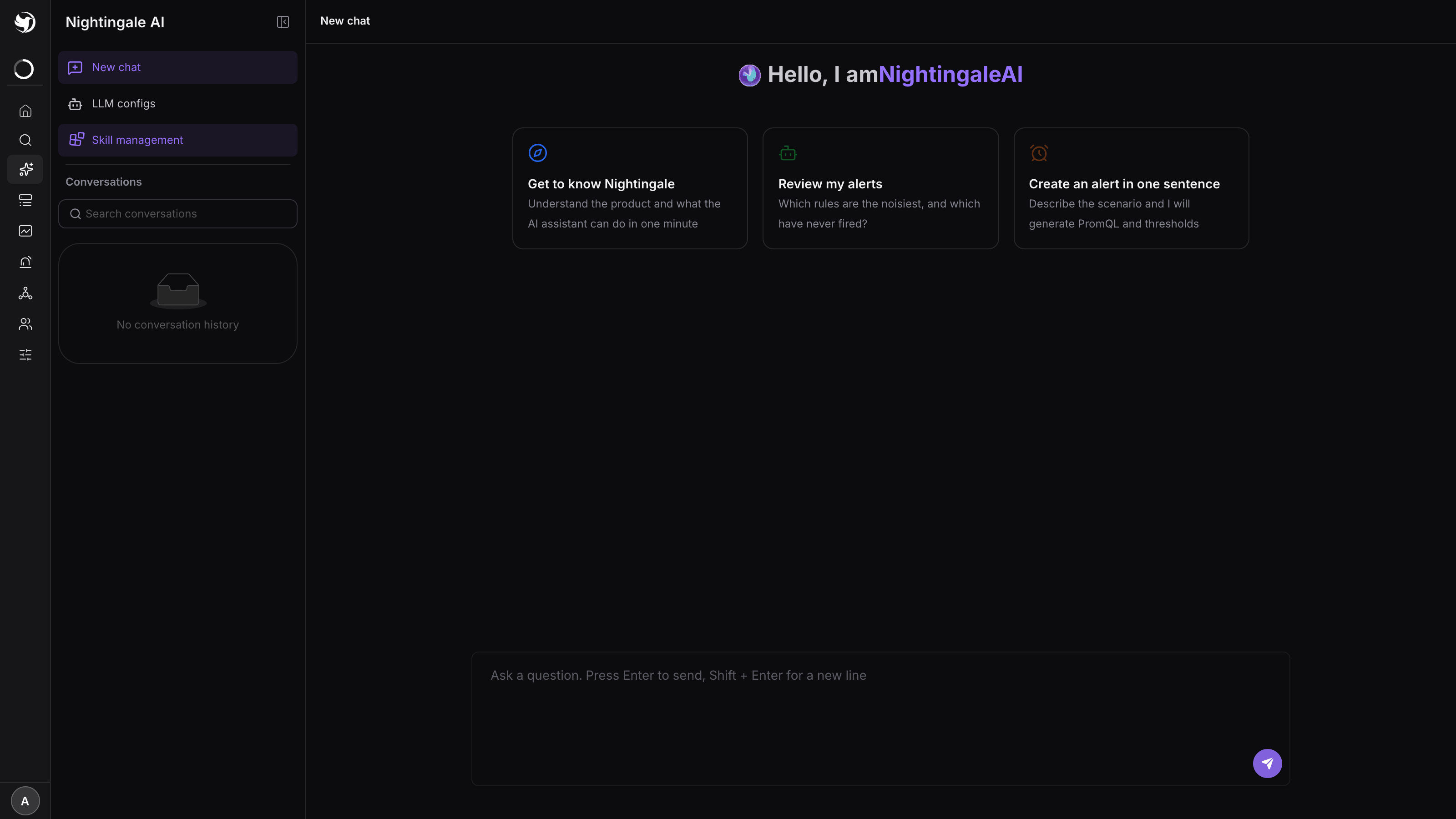
A new chat offers three starting points, which are a fair summary of what it is for: Get to know Nightingale, Review my alerts (which rules are the noisiest, and which have never fired) and Create an alert in one sentence.
Conversations are stored per user and kept until deleted — see Agents and conversation history.
What it can do
Each turn is a tool-calling loop: the model picks a tool, Nightingale runs it, the result goes back, and it repeats — up to 25 rounds, or more when a loaded skill raises its own budget. So the answers are drawn from your data, not from what the model remembers about monitoring in general.
Reading, roughly by area:
| Area | What it reaches |
|---|---|
| Events | Active and historical alerts, event detail, evaluation logs, processing logs, workflow executions |
| Configuration | Alert rules, muting and subscription rules, self-healing scripts, notification rules, media types, message templates, datasources, dashboards |
| Inventory | Hosts and their real-time status, neighbouring hosts, users, teams, business groups |
| Queries | PromQL instant and range queries, log queries, and database/table/column listing for SQL datasources |
| Documentation | A search over the Nightingale and Categraf documentation, so version-specific field names come from the docs rather than from memory |
Writing is a much shorter list — create an alert rule, dashboard, notification rule, muting rule or subscription; update those; import a Prometheus rule file or a dashboard template; author a skill. There is no delete tool of any kind.
When a create tool is missing something it must not guess — most often the business group — it does not pick one. It stops and shows you a dropdown to choose from, and continues once you answer.
Anything that changes an existing object stops for a confirmation
The update_* tools are two-phase, and the gate is on the server rather than in the prompt:
- The first call computes the change, stores it, and returns without writing. The turn ends with a confirmation card listing what would change — text the tool generates itself, so the model cannot paraphrase it into something friendlier.
- Only when you confirm in a later turn is the change applied, replayed from what was stored, with the model no longer involved.
A proposal expires after 30 minutes and can be confirmed only once. If the object changed underneath in the meantime, the confirmation is refused rather than silently overwriting somebody else's edit.
This is the mechanism Safe automation patterns builds on — and it is the reason the built-in assistant is a safer place to change configuration than a write-enabled MCP client.
The AI buttons elsewhere in the product
You do not have to go to the workspace. A Nightingale AI button sits in the header of almost every page and opens a floating chat that already knows where you are, with suggestions to match:
| Where | What it offers |
|---|---|
| Alert rules | Create a rule from a description; why a rule did not fire; why this alert fired |
| Active / historical events | Summarise the distribution; which rules or targets fire most; break down by severity and business group |
| Event detail | Analyse the root cause; find similar historical alerts on the same target or rule |
| Hosts | Why a newly installed host does not appear; why a host went offline; how to deploy Categraf |
| Dashboards | Create a dashboard for a component; analyse this dashboard; find panels with abnormal trends |
| Notification rules and media types | Which events this rule will match; why a notification was not sent; how to at-mention someone |
| Self-healing | Write a script for disk cleanup or a service restart; how a script reads alert fields from stdin |
There is also a small AI button beside every PromQL editor — in the Metrics explorer, the alert rule form, recording rules and dashboard panels — and inside the message template editor. Worked examples are in Common investigation workflows.
It can never see more than you can
The assistant runs in the permission context of the account asking. A business group you cannot open, it cannot read; a rule you cannot edit, it cannot change. There is no service account behind it and no separate "permissions for the AI" — the model is in Authentication and permissions.
Skills add a second layer: a skill marked Visible to managing teams only is removed from the catalogue for everyone else, so the model is not even told it exists.
It is not the same thing as the MCP endpoint
Both surfaces exist and they are independent.
| The built-in assistant | /mcp | |
|---|---|---|
| Where the model lives | Your LLM config, inside Nightingale | The client's own model — Claude Code, Cursor |
| Needs an LLM config | Yes | No |
| Toolbox | The built-in one described above, plus skills | A separate set of fine-grained toolsets |
| Writes | Two-phase confirmation, always | Off by default; immediate when enabled |
/a2a is the third surface: it wraps this assistant so another agent platform can talk to it in
natural language, which is why it does need an LLM config. See A2A endpoint.
Where your data goes
The address in your LLM config is the only place your monitoring data is sent. Nightingale has no model service of its own and there is no central AI service — point it at an Ollama or vLLM on your own network and nothing leaves the perimeter.
One outbound call is worth knowing about: the documentation-search tool downloads the public
documentation index from flashcat.cloud about once a day and then searches it locally. It uploads
nothing; block it and that one tool degrades while everything else keeps working.
Next
- Set up the model: Configure an LLM provider
- Teach it your team's methods: Install, manage and write Skills
- Prompts that work: Common investigation workflows