Mute rules
Silence by label match, time window or maintenance schedule, and see what a mute rule is currently swallowing.
Last reviewed
Where this page ends: a rule that keeps a class of alert quiet during a window you choose, and you know whether it means "no event at all" or "the event is still recorded, just not sent".
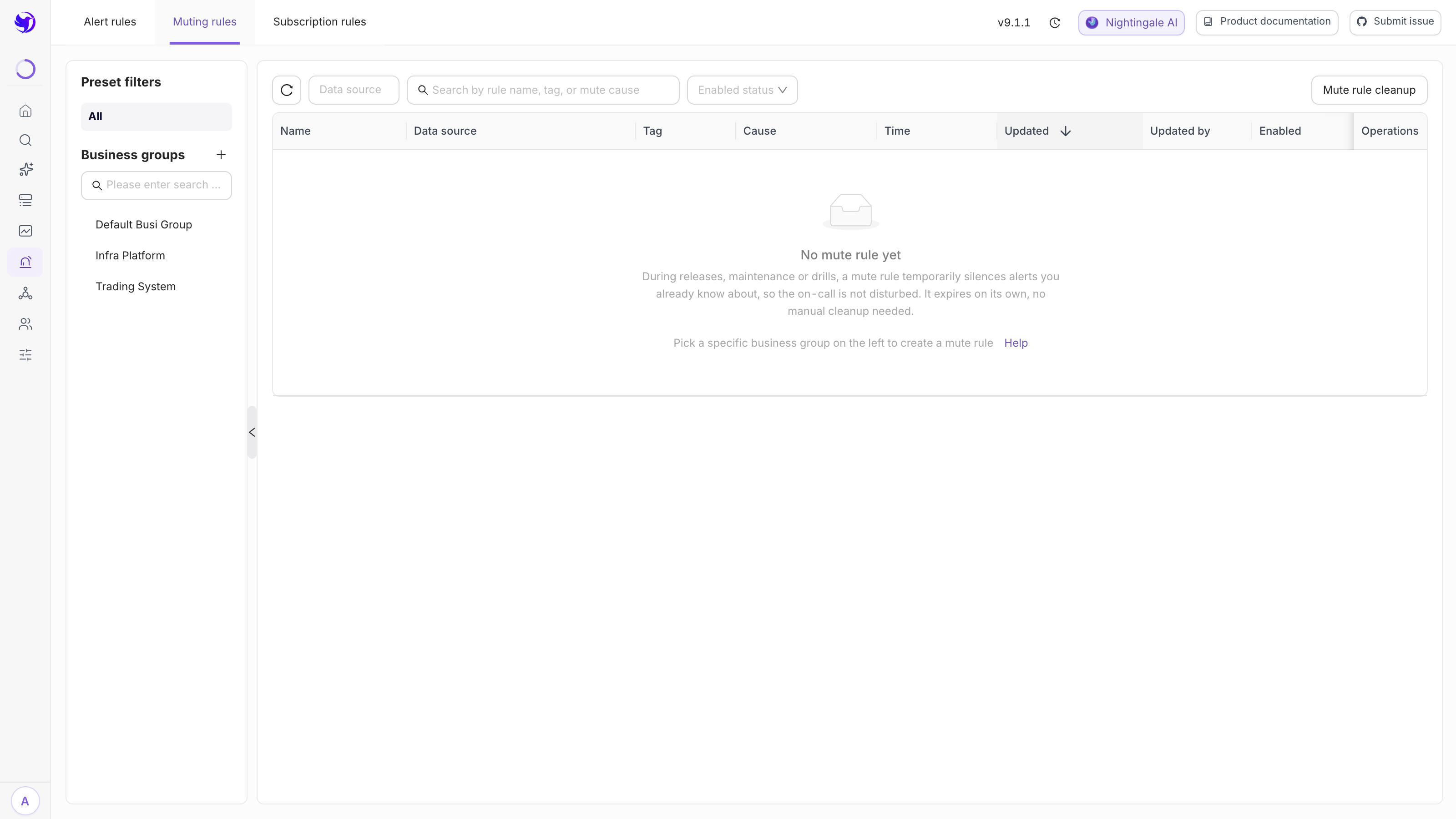
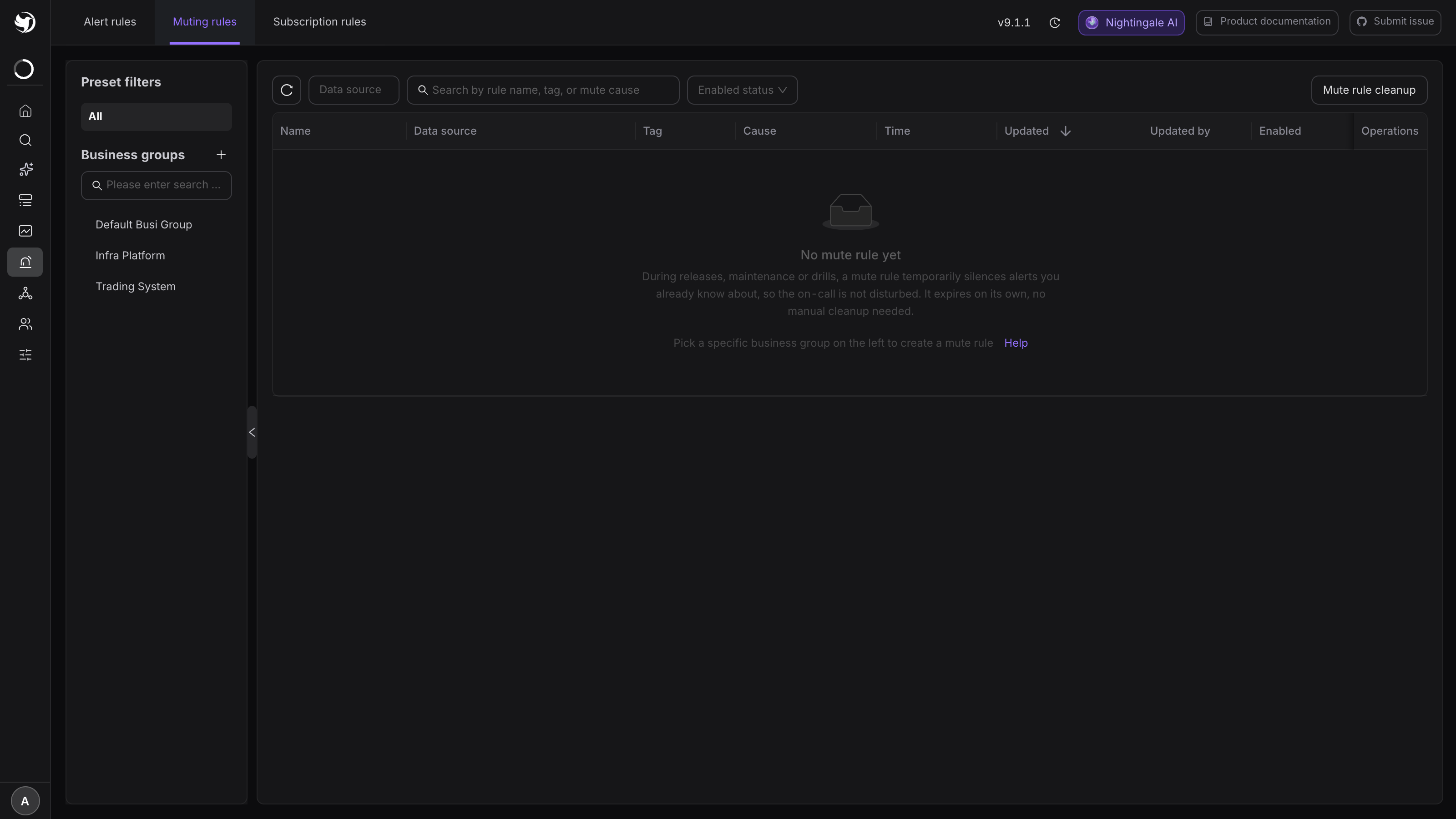
Entry point: Alerts & Notifications → Alert rules, then the Muting rules tab at the top
of the page (/alert-mutes).
1. Create a mute rule
Click Add. The form has three sections; the first two are marked as the core ones.
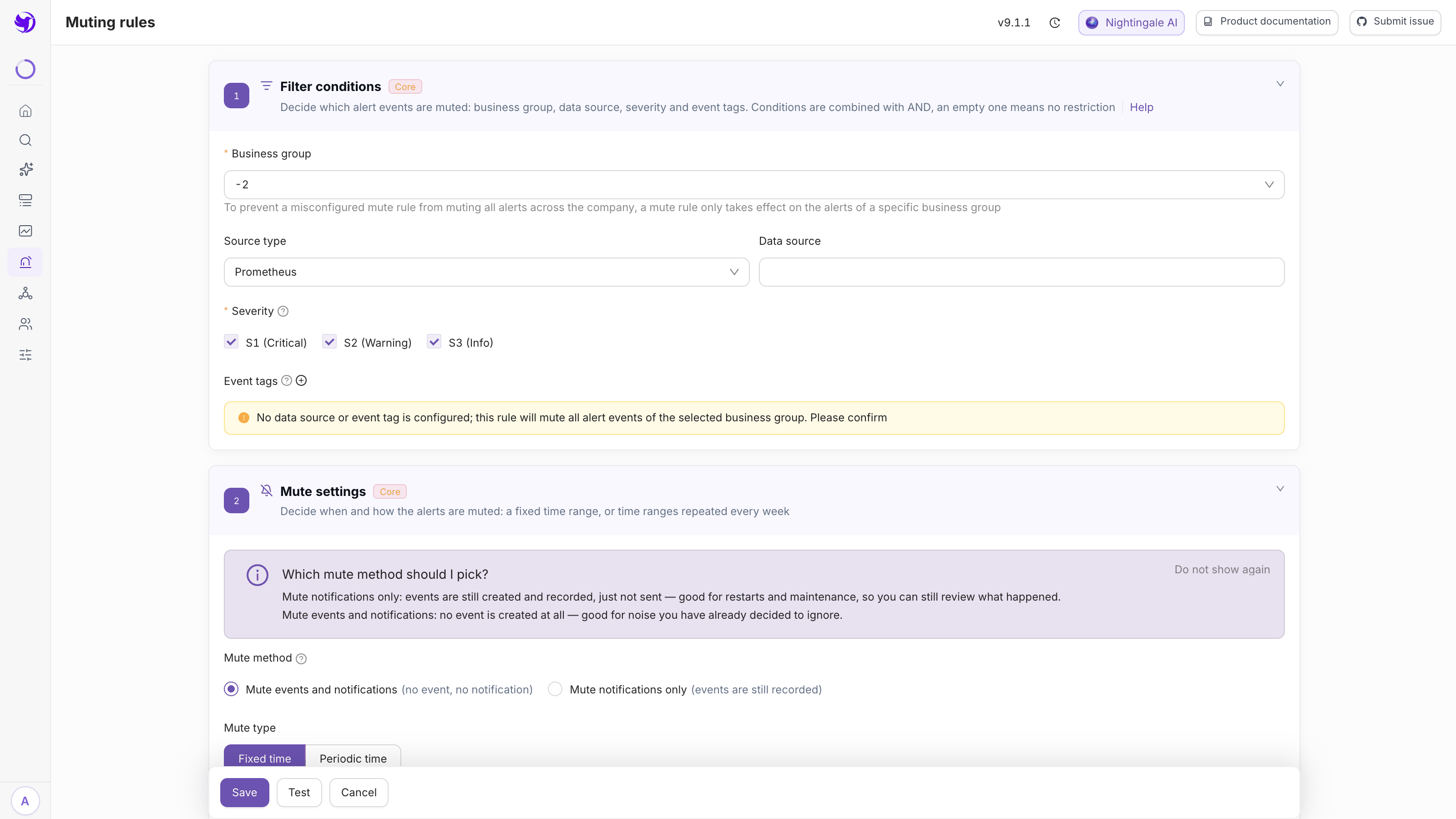
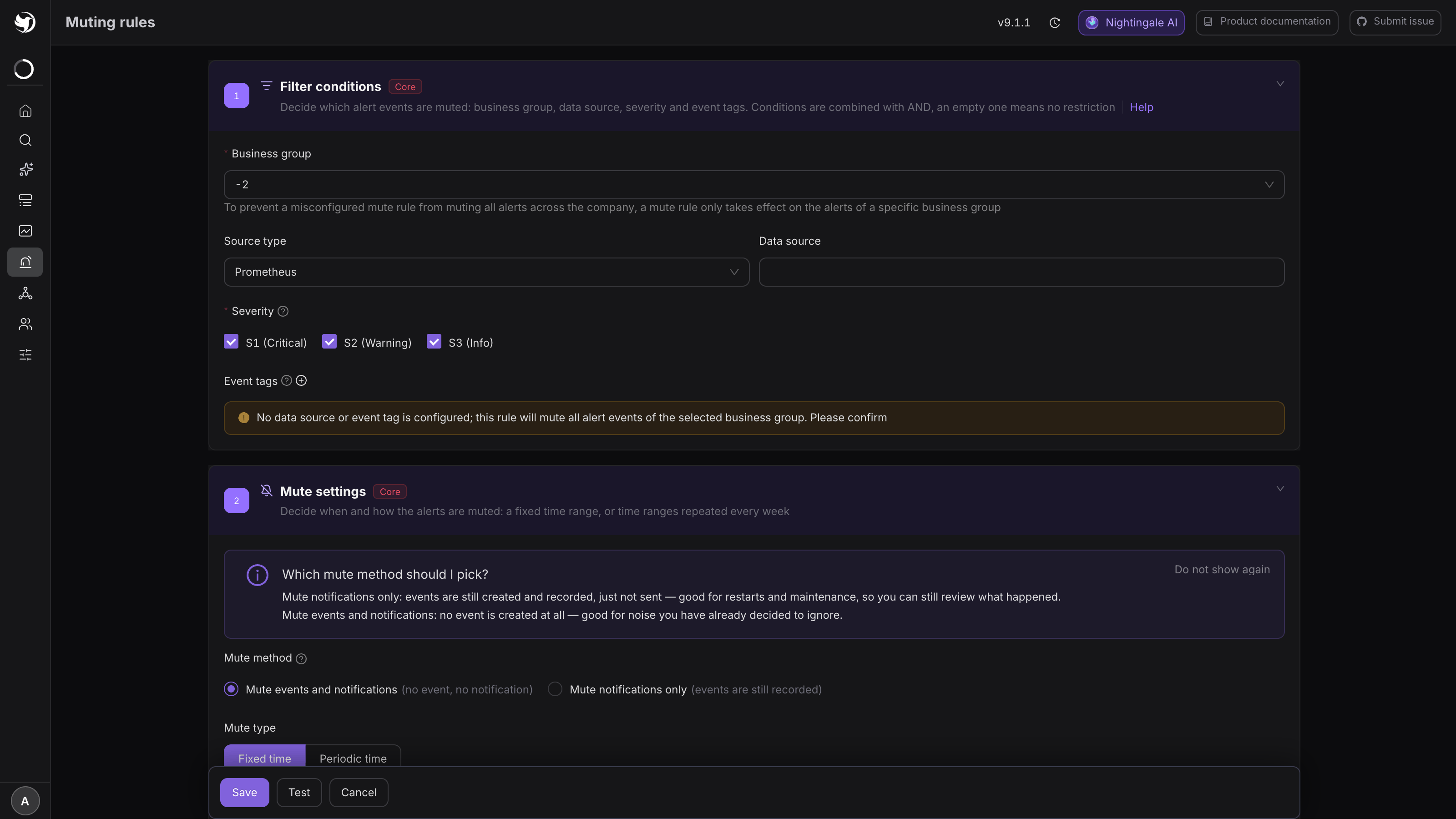
Filter conditions decide which events get muted. They are AND-ed, and an empty one means no restriction:
| Field | What it does |
|---|---|
| Business group | Required. A mute rule only affects events of this one business group — the form says so, and the reason is to stop a mis-typed rule from muting the whole company |
| Data source type / Data source | Empty = unrestricted. Pick the type, then an instance, to mute just one Prometheus |
| Severity | Three checkboxes, all ticked by default. Only ticked severities are muted; the rest still alert |
| Event tags | Label match conditions; add several rows, AND-ed together |
The six operators, all applied to a label's value:
| Operator | Meaning |
|---|---|
== | Equals a value |
!= | Does not equal a value |
=~ | Matches a regex |
!~ | Does not match a regex |
in | One of a set of values |
not in | Not in a set of values |
For OR semantics, split into several mute rules — any one matching mutes the event.
Leaving both data source and event tags empty is allowed, but a yellow banner warns that "this rule will mute all alert events of the selected business group". Confirm before saving.
2. Pick the mute method
The first option in Mute settings is Mute method, and the two values differ a lot:
- Mute events and notifications (default): no event is created at all. Clean, but the history for that window has a hole in it and post-incident review suffers. Good for noise you have already decided to ignore.
- Mute notifications only: the event is created and recorded as usual, it just is not sent. Good for restarts and maintenance, so you can still review whether anything went wrong during the window.
The purple "Which mute method should I pick?" hint in the form says exactly this; Do not show again collapses it.
3. Pick the time: fixed or periodic
Mute type has two tabs:
- Fixed time: choose a Quick duration (30m by default) and the start and end times are computed, editable to any range. Use it for a one-off change window.
- Periodic time: pick days of week plus a daily start and end time, several ranges allowed. It never expires. Use it for "do not page after 22:00".
Periodic ranges cannot span midnight in one row. To mute 22:00 to 06:00, use two ranges:
22:00–23:59 and 00:00–06:00, both across Monday to Sunday.
Finish with Name (what the list shows; it is auto-generated from the filters and editable) and Cause — write down why, who owns it, and when it can be lifted, or nobody else will know whether the rule is safe to delete.
4. Test before you save
Next to Save there is Test. It runs this rule's match conditions against existing events and shows which ones it would hit — the only place you can see what a rule is about to swallow before it takes effect.
On save, if existing events match the filters, a preview lists them and offers two choices: Save only or Save and delete related events.
Expected result: a new row in the list, with the Time column showing the effective window.
Expired rules read Expired and do not disappear on their own; clear them with Mute rule
cleanup at the top right.
How a match is decided
Whether an event is muted is checked in this order: data source → time window → severity → event tags. All of them must hold.
When one event matches several mute rules, the stronger one wins: if any matching rule is "mute events and notifications", no event is created; only when every matching rule is "mute notifications only" does the notify-only path apply.
What catches people out
- Muting only affects new evaluation results. An event already in the active list does not vanish because you created a mute rule; it just stops producing notifications during the window. To make it disappear now, delete it from the detail panel (mind the precondition — see Active and historical events).
- The time window is judged against the event's trigger time. That trigger time is refreshed on every evaluation, so an event that started before the window is muted once the window opens, and starts sending again once it closes.
- Pipelines run before mutes. Labels a workflow writes are visible to mute rules, so "enrich first, then mute on the new label" works. The full order is in Noise reduction and routing model.
- Muting does not save engine work. The rule still queries and evaluates on schedule; what is skipped is storage and notification downstream.
Next
- The opposite need, more people receiving it: Alert subscriptions
- A class of event that should not exist at all: Event pipelines
- Muted and still paged: Notifications go to the wrong people
- Ready-made recipes: Noise reduction patterns