Event pipelines
Ordered processors that transform, enrich, drop or route an event before notification.
Last reviewed
Where this page ends: a chain of processors attached to an alert rule or a notification rule, which every event flows through before it goes out — rewriting labels, attaching context, or dropping the event outright.
In the UI this feature is called Workflows, under Alerts & Notifications → Workflows
(/event-pipelines).
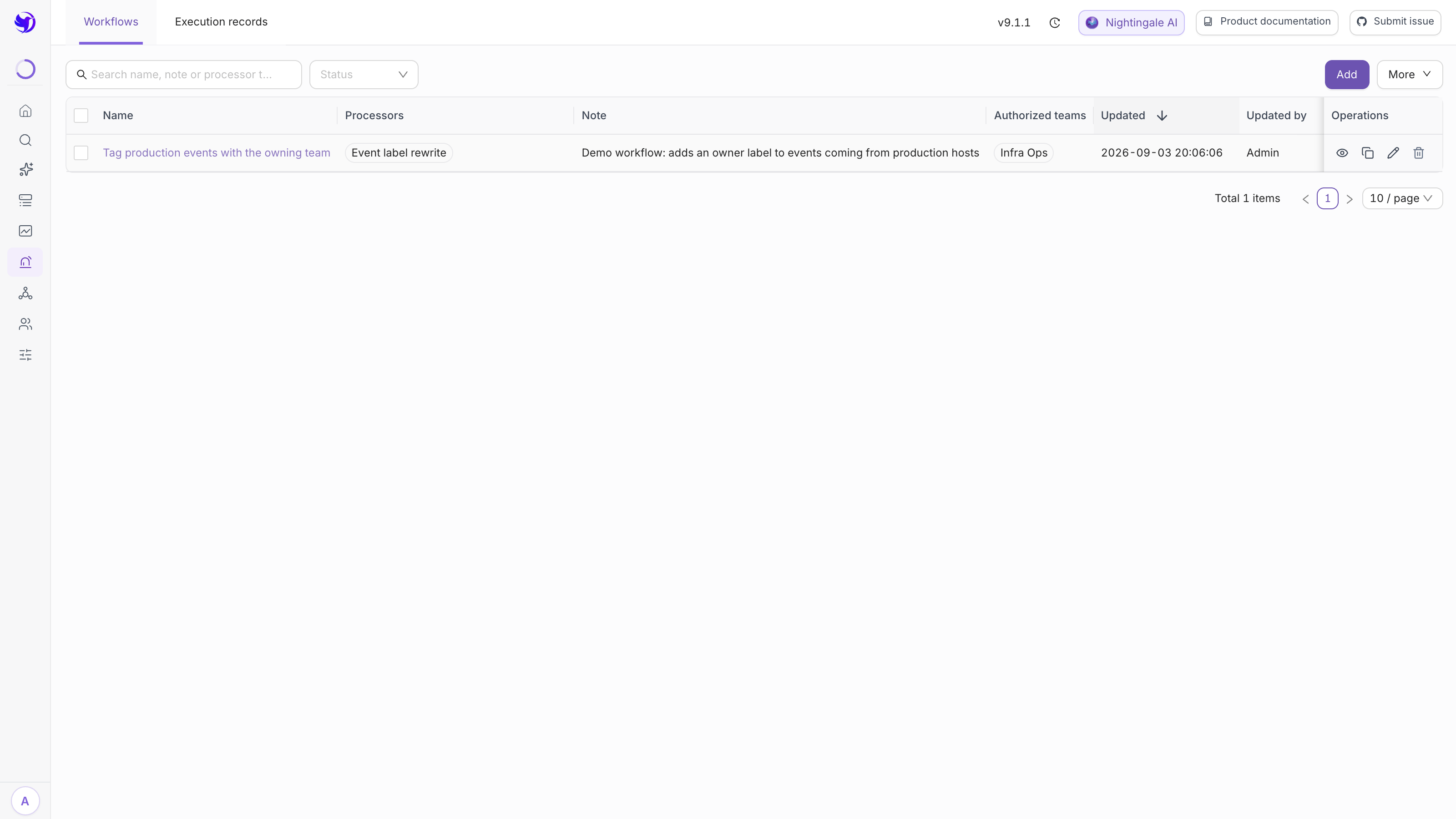
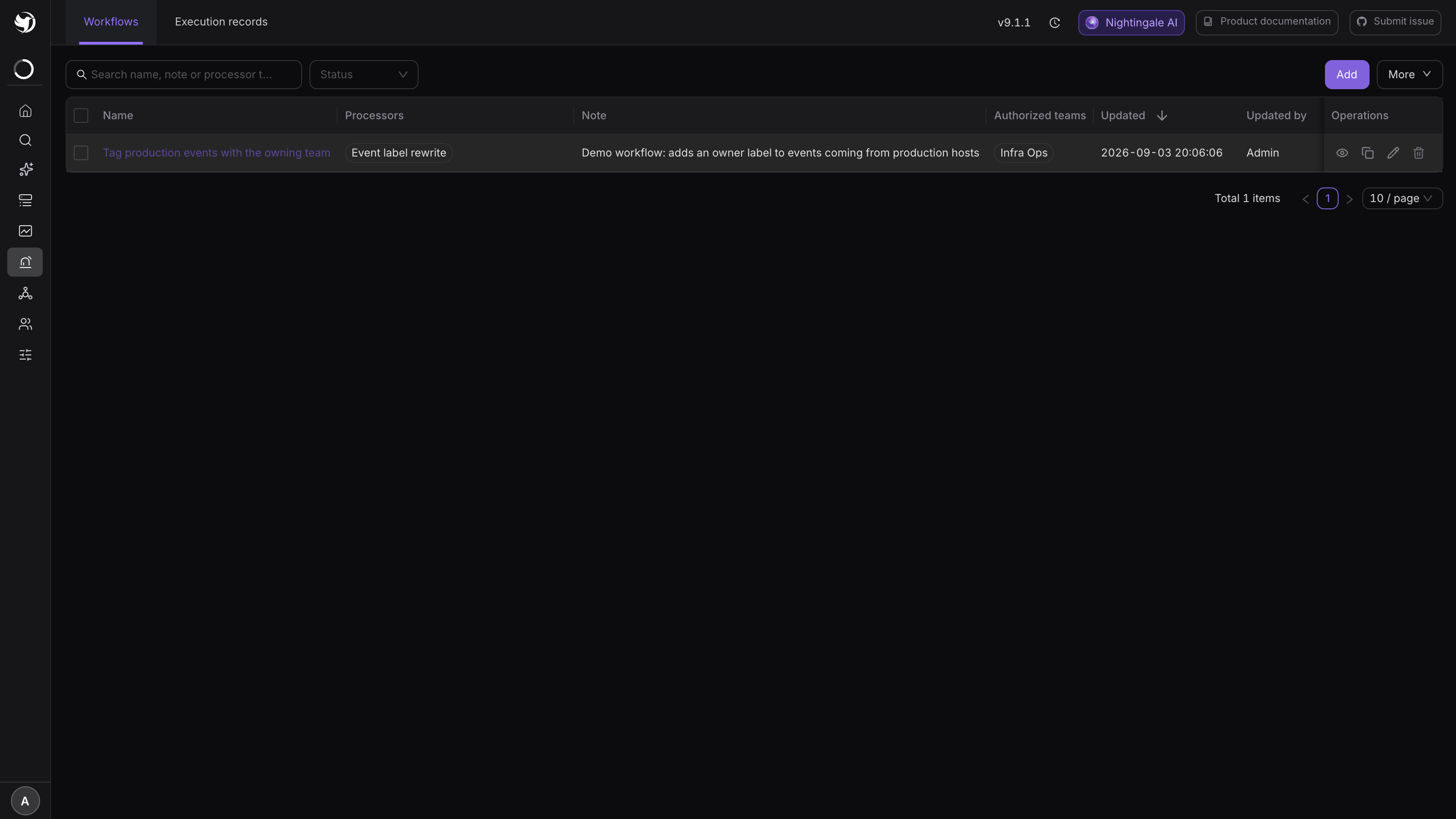
1. Create a workflow
Click Add and configure it in the drawer on the right. Three sections: Scope, Processors and Basic info.
After saving, the UI tells you the thing that matters most: a workflow does not take effect on its own. It only runs when referenced by an alert rule or a notification rule. The "go and attach it" panel in the drawer exists for exactly that.
2. Scope: which events enter this workflow
Conditions are AND-ed, and leaving them all empty lets every alert event in.
- Applicable labels filters on event labels. Enter
service=monand only events carrying that label come in; - Applicable attributes filters on event attributes, from a fixed set of four — Business group, Data source, Is recovered and Alert severity.
"Is recovered" earns its keep: excluding recovery events here is cleaner than testing for them inside a processor.
3. Processors: five of them in the open-source edition
Processors run top to bottom; the event takes one straight path, with no branching. Drag the cards to reorder.
| Category | Processor | What it does |
|---|---|---|
| Denoise | Event drop | Drops the event by condition; later processors do not run and nothing is notified |
| Enrich | AI summary | Generates a summary for the event with an LLM |
| Dispatch | Webhook callback | Calls the event back to an external system (ticketing, automation) |
| Rewrite | Event label rewrite | Modifies / adds / removes event labels |
| Rewrite | Event update | Calls an HTTP API and updates the event with the response |
Event drop takes a Go template as the condition: the event is dropped when the template
outputs true, and any other output lets it through. Available variables: $event.Severity
(1/2/3), $event.IsRecovered (boolean), $event.RuleName, $event.TagsMap.<label>. The editor
offers ready-made snippets:
{{ if eq $event.Severity 3 }}true{{ end }}
{{ if $event.IsRecovered }}true{{ end }}
{{ if eq $event.TagsMap.env "dev" }}true{{ end }}
For how to configure label rewrite and event update, see Rewrite labels and enrich context. AI summary — model setup, prompt and where the result lands — is in AI summary processor.
The first processor card has no type pre-selected on purpose, and the type is required — saving without one is refused with "Pick a processor type — a processor without one fails on every event". That validation exists precisely because a typeless processor would otherwise fail on every event it saw.
The Variables section defines workflow-level inputs, referenced inside processors as
{{$inputs.name}}. Use it to lift "same flow, different endpoint per environment" out of the
processor config.
4. Attach it to a rule, or it never runs
Two attachment points, with different meaning:
- On an alert rule: runs as soon as the event is produced and affects everything downstream — mutes, storage, subscriptions and every notification rule all see the processed event. Drop events and rewrite labels everyone should see, here.
- On a notification rule: runs just before that one rule sends, and affects only that send. Adding context for one chat room only belongs here.
In the notification rule form the section is called Event workflow; click "Add a new event workflow" to pick one, and each entry can be enabled or disabled on its own.
Pipelines run before mutes, so labels written by a workflow attached to an alert rule are visible to mute rules. The full order is in Noise reduction and routing model.
What catches people out
- Workflows are global; access is controlled by "Authorized teams". That field in Basic info decides who can see and change the workflow. It is not bound to a business group.
- Disabling a workflow does not detach it. The referencing rules stay; the flow is just skipped. Deleting the workflow leaves that part of the referencing rules dead.
- Do not put event drop first while you are still debugging. Once the event is dropped, later processors never run and their output never shows up in the execution record.
- Order is meaningful. Rewriting labels then dropping on them is not the same as the reverse.
Next
- Try it before it is live: Try a workflow with a mock event
- Where the results land: Inspect workflow execution records
- The label mechanics: Rewrite labels and enrich context
- Passes the test run but not in production: A workflow tests fine but does nothing in production