DingTalk / Feishu / WeCom
Robot webhooks and card messages for the three major Chinese workplace apps.
Last reviewed
Where this page ends: alerts land in your DingTalk / Feishu / WeCom room, with one media type shared by every room and each room's token kept on its own notification rule.
The fast path: paste the webhook URL
If all you want is "this room should get these alerts", you do not have to create a media type first. In the alert rule editor, the Notification rule dropdown offers Quick create: paste the bot's full webhook URL into it.
It recognises DingTalk, WeCom, Feishu Card, Lark Card and FlashDuty, extracts the token from the URL, reuses an existing notification rule with the same token, or creates both the media type and the rule for you.
Anything it cannot recognise (Slack, your own webhook) goes through the manual flow below.
1. Create the group bot in the chat app
| Platform | Path | The URL you get |
|---|---|---|
| DingTalk | Group settings → Group Assistant → Add Robot → Custom | https://oapi.dingtalk.com/robot/send?access_token=<token> |
| WeCom | Group settings → Group Robot → Add Robot → New Robot | https://qyapi.weixin.qq.com/cgi-bin/webhook/send?key=<uuid> |
| Feishu | Group settings → Bots → Add Bot → Custom Bot | https://open.feishu.cn/open-apis/bot/v2/hook/<uuid> |
| Lark | Group settings → Bots → Add Bot → Custom Bot | https://open.larksuite.com/open-apis/bot/v2/hook/<uuid> |
Only the token part goes into Nightingale, not the whole URL — the media type already holds the host and path, and pasting the full URL produces an invalid address.
2. The media type usually needs no change
Alerts & Notifications → Media types. The open-source edition ships Dingtalk, Wecom and
Feishu Card ready to use; Lark Card has a card in the type panel on the left, one click to
create.
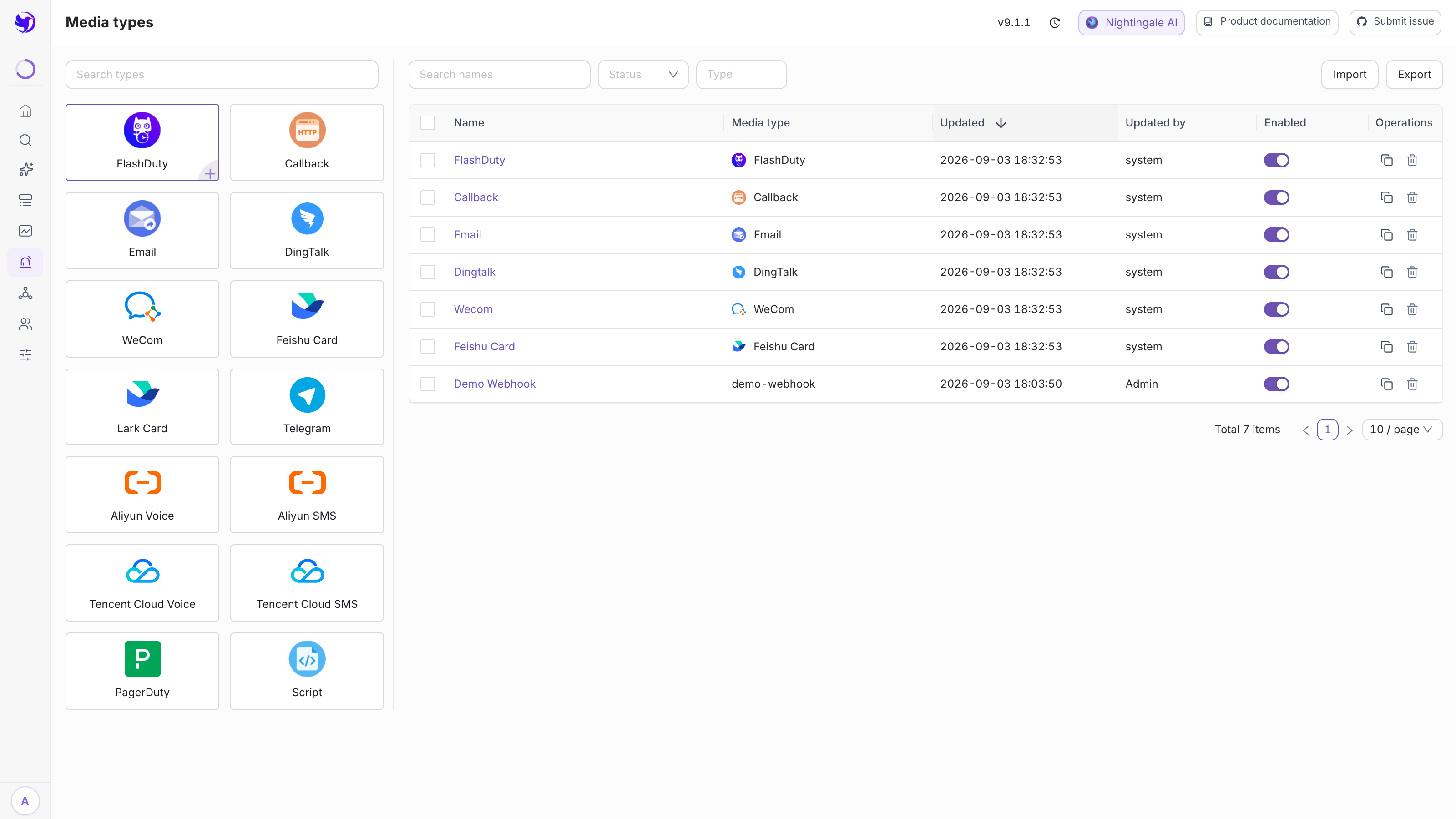
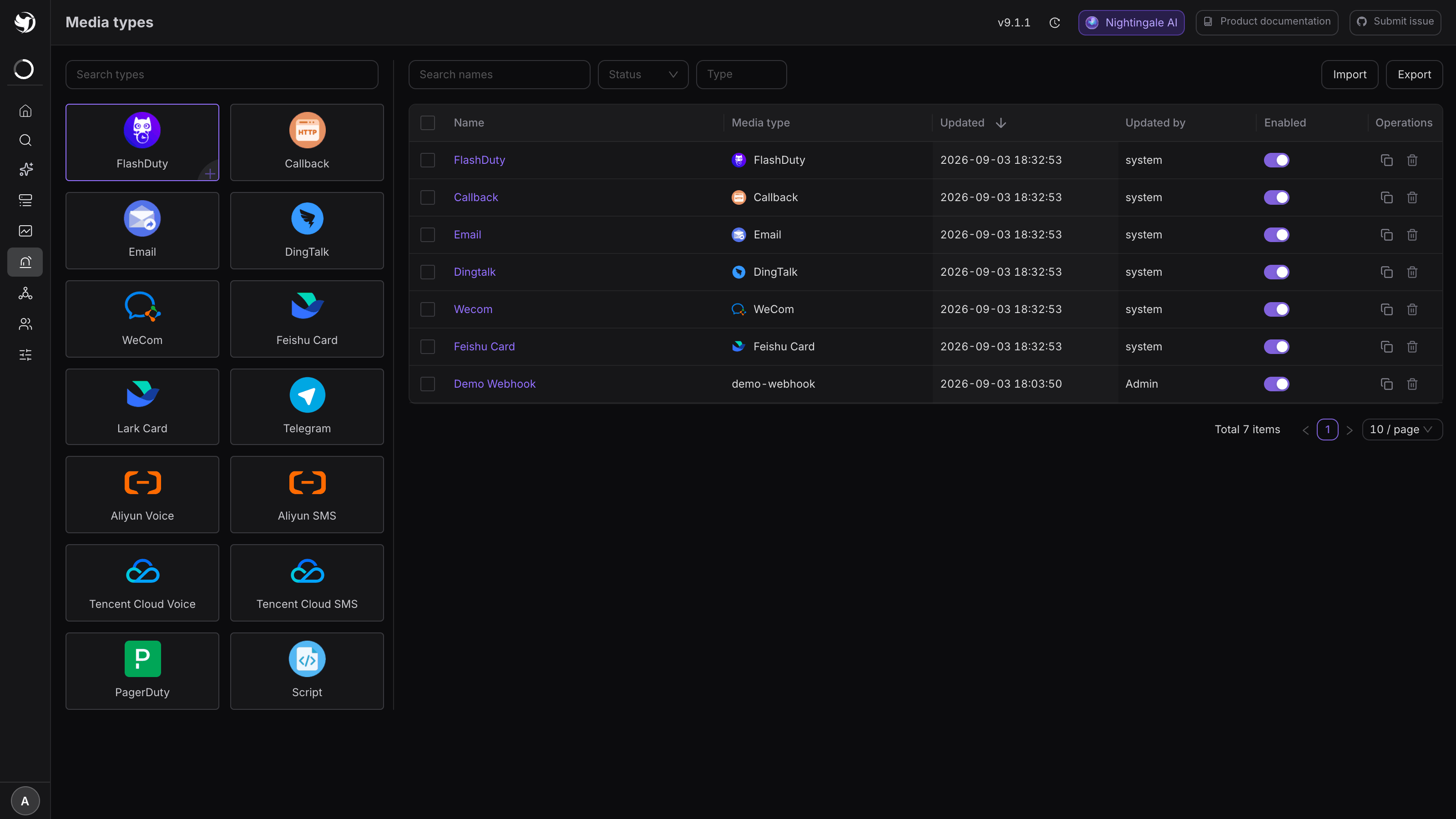
URL, method, headers and body are all pre-filled. You only need to touch them when:
- You need a proxy to reach the internet — fill in Proxy under HTTP configuration;
- You want separate counters or rate limits per business line — duplicate the media type and rename it;
- You want a different message shape (DingTalk ActionCard instead of markdown, say) — edit the Body.
3. Put the token in the notification rule
Alerts & Notifications → Notification rules → Add, then inside the notification config:
- Set Media type to
Dingtalk/Wecom/Feishu Card; - Message template auto-selects the matching one (
Dingtalk/Wecom/FeishuCard); - Fill in the media parameters (see the table below);
Bot Nameis only a note and can be left blank; - Check the applicable severities, or the config matches nothing;
- Click Run test → "Use mock event", and confirm the message really reaches the room.
The three platforms side by side
| DingTalk | WeCom | Feishu Card | Lark Card | |
|---|---|---|---|---|
| Parameter name | Access Token | Key | Access Token | Token |
| What to paste | what follows access_token= | the UUID after key= | the UUID after /hook/ | the UUID after /hook/ |
| Built-in template | Dingtalk | Wecom | FeishuCard | LarkCard |
| Template fields | title + content | content | title + content | title + content |
| Message shape | markdown | markdown | interactive card, green on recovery and red on firing | same as Feishu |
| Rate limit | 20 msg/min | 20 msg/min | 100 msg/min, 5 msg/s | same as Feishu |
The WeCom template has only a content field and no title, which is why the built-in template
puts severity and rule name on the first line of the body.
Security settings: keywords and IP allowlists only
All three ask you to pick a security policy when creating the bot. Nightingale supports:
- Custom keywords — the bot only forwards messages containing one of them. Pick something
that always appears, such as
Triggeredor a prefix of your rule names. DingTalk allows up to 10 keywords, Feishu up to 3. - IP allowlist — the egress IP of your Nightingale server.
Signed requests are not supported. The media type's request body has no signature field and
nowhere to keep the secret, so a bot configured with signing rejects everything with
sign not match.
Mentioning specific people
Only DingTalk supports it. The built-in Dingtalk body already contains
{{batchContactsAts $sendtos}} and atMobiles, but $sendtos is empty by default. To
make it work:
- Edit the
Dingtalkmedia type and set Variable configuration → Contact key toPhone; - The notification rule then grows Users / Teams fields — fill them in;
- Those users need a phone number on file, and must actually be in the room.
A WeCom group bot cannot mention by phone number (only <@userid> inside markdown), and
neither can a Feishu card bot.
Common errors
| Error | Cause |
|---|---|
keywords not in content (DingTalk) / Key Words Not Found (Feishu) | The message does not contain your keyword. Pick one that always appears, or switch to an IP allowlist |
sign not match / sign match fail | The bot uses signing; switch it to keywords or an IP allowlist |
invalid webhook url (WeCom) | The whole URL went into Key; paste only the UUID |
errcode 45009 (WeCom), or DingTalk throttling | Over 20 msg/min. Use mute rules, or split across several rooms |
status_code:200 but nothing in the room | The bot was removed from the room, or the keyword policy filtered the message out |
Failure details live in the event's Notification records — see Retries and delivery status.
Next
- Change the layout of the message: Templates and variables
- Slack / Telegram / Discord: Slack / Telegram / Discord / Mattermost
- Verify the whole path before you rely on it: Test a notification end to end