Notification rules
Match events by label and severity, then pick the media type, the template and the recipients.
Last reviewed
Where this page ends: a working notification rule — S1 through one media type, S3 through another — attached to an alert rule so events actually go out, and you have already received a test message from it before saving.
1. Create a notification rule
Alerts & Notifications → Notification rules, then Add at the top right.
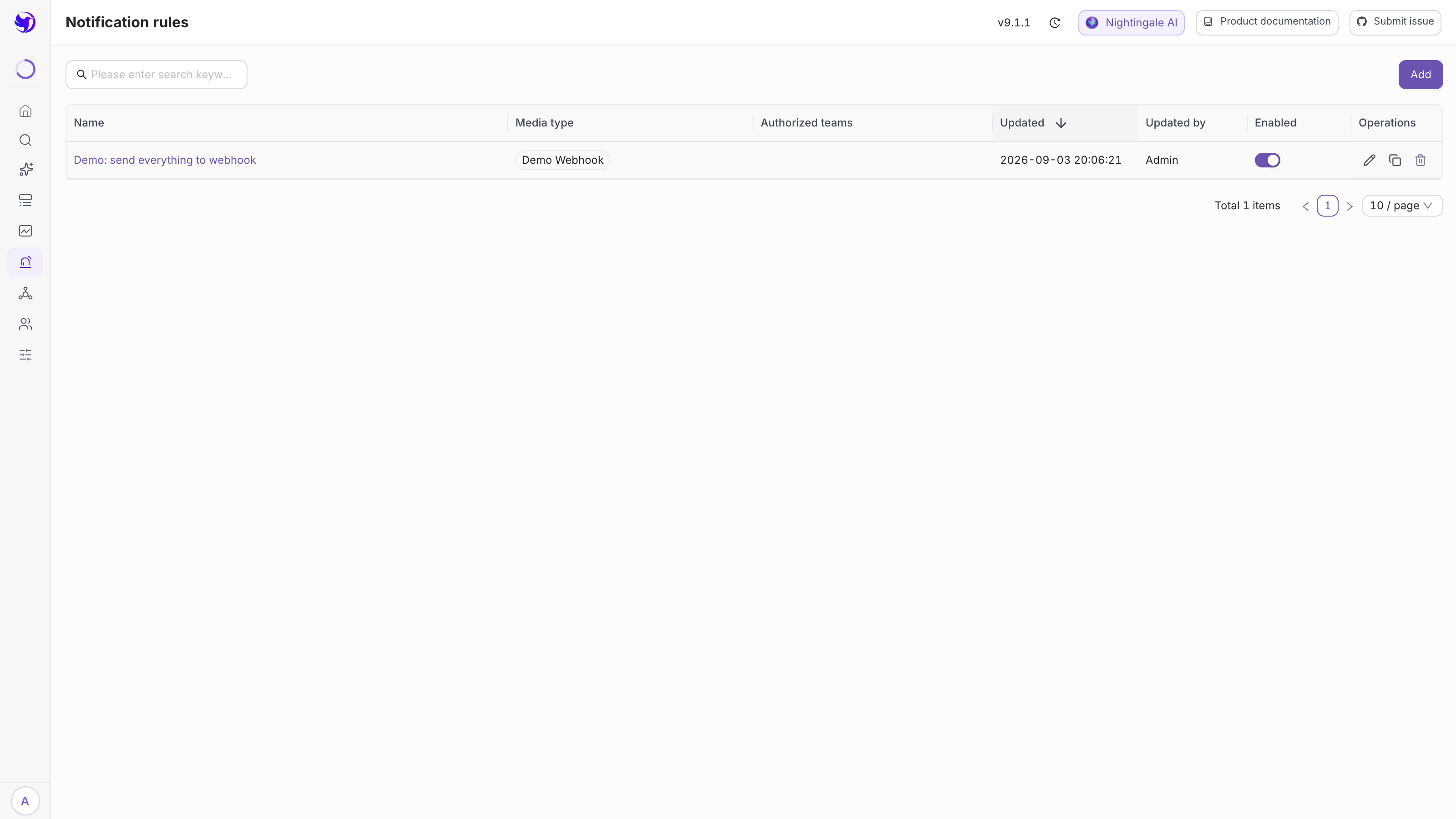
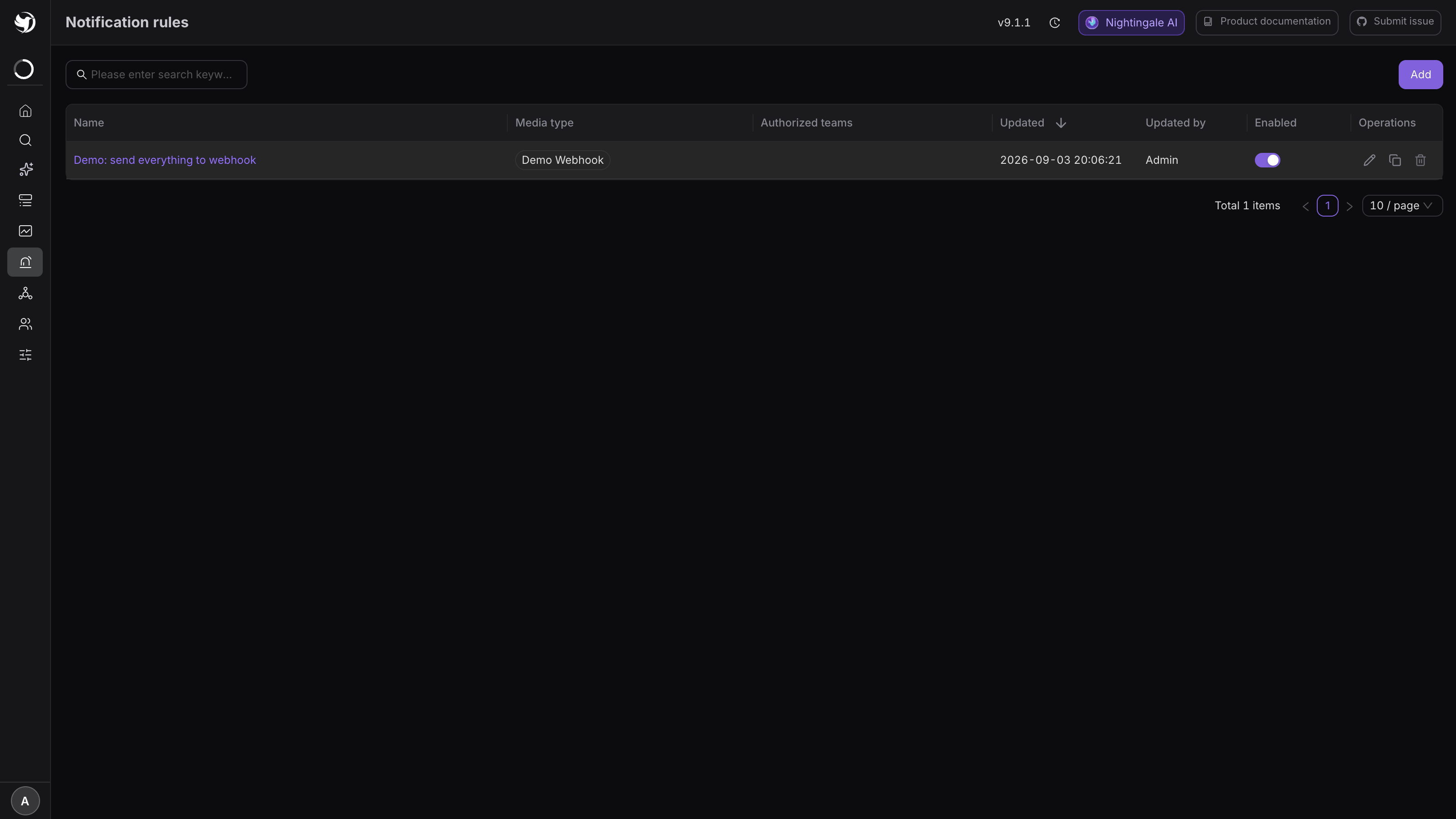
The form has three sections: Notification configuration (the core one), Basic configuration, and Event workflow (optional). Skip basic configuration for now — the name is generated for you once you have picked a media type and a team.
2. Fill in the first notification config
| Field | Notes |
|---|---|
| Media type | Pick an existing one. If nothing fits, create one first — see DingTalk / Feishu / WeCom |
| Message template | Appears only after a media type is chosen, and lists only templates of the same media type; the first one is selected for you. FlashDuty, PagerDuty and Callback media types do not show this field — they do not use templates |
| Media parameters | Vary by media type: DingTalk wants Access Token + Bot Name, WeCom wants Key, Callback wants Callback Url |
| Users / Teams | Shown only when the media type declares a contact key (email, SMS, phone). The two cannot both be empty |
Group-bot media types (DingTalk, WeCom, Feishu Card) have no recipients — the message
lands in the room and whoever is in the room sees it. Naming a specific person is done with an
@ inside the template.
Expected result: once media type and team are set, the Name field above fills itself in as "media type - team", and stays editable.
3. Narrow it with filters
Each notification config has a collapsed Filter conditions block. All four are ANDed:
| Filter | What empty means |
|---|---|
| Applicable severities | Not "no restriction" — it matches nothing. Leaving all three unchecked disables this config |
| Applicable time periods | No restriction. Several "weekday + start/end" groups are allowed, and ranges crossing midnight (21:00–09:00) work |
| Applicable tags | No restriction. Filters on event labels, e.g. env=prod |
| Applicable attributes | No restriction. Filters on business group, cluster, alert rule, severity, is-recovered, host business group |
The difference: tags are dimensions that come with the data (instance, job, whatever you
attached); attributes are metadata Nightingale puts on the event.
4. Test before you save
Every notification config has a Run test button. Two modes:
- Use mock event — sends a built-in fake event and does not check the filters. It answers only "is the address reachable and the secret correct". Use this on a fresh install.
- Pick history events — takes real past events and runs them through the filters first, so a non-matching event is rejected outright. That doubles as a check on your filters.
Expected result: the dialog shows the target's response, and a real message shows up in your room or mailbox. Either one alone does not count as a pass — see Test a notification end to end.
5. Attach it to an alert rule
A notification rule does nothing on its own. Go back to Alerts & Notifications → Alert rules, edit a rule, select it in the Notification rule field, and save.
One alert rule can carry several notification rules, and one notification rule can be used by many alert rules. Edits apply only to events created afterwards; past events are not re-sent.
To find out who is currently using a rule and what it has sent, click its name in the list to open its detail page. The three tabs are Events (what this rule notified on), Alert rules (which alert rules reference it) and Subscription rules.
Authorized teams decide who can see the rule
Authorized teams under Basic configuration is not a recipient list, it is permission: only users in those teams can see and edit this rule in the list. Admins see everything.
Recipients are chosen separately, inside the notification config. The two are unrelated.
Event workflow (optional)
A notification rule can carry one or more event pipelines that transform the event before it is sent — add labels, rewrite fields, or drop it entirely. They run before the filters, so labels written by a pipeline are visible to Applicable tags.
Note that an alert rule can also carry a pipeline; that one affects everything downstream, while this one affects only this notification rule.
A few habits worth having
- Split rules by "who is on call and how urgent", not by data source. For example
pay-prod-critical(S1, phone + DingTalk),pay-prod-warning(S2, DingTalk),default-all(catch-all). - Make sure the catch-all actually exists. Forget to pick a notification rule on a new alert rule and the events just sit in the event list.
- Do not create one media type per chat room. A media type describes how to send; the room's token belongs on the notification rule.
- Per-person do-not-disturb is not possible. All filtering is rule-level; a user cannot opt out of a category on their own. If someone needs that, give them their own rule.
Next
- Change the wording: Templates and variables
- Let another team receive the same events: Alert subscriptions
- Stay quiet during a change window: Mute rules
- Configured but nothing arrives: Why is there an alert event but no notification?